Representative
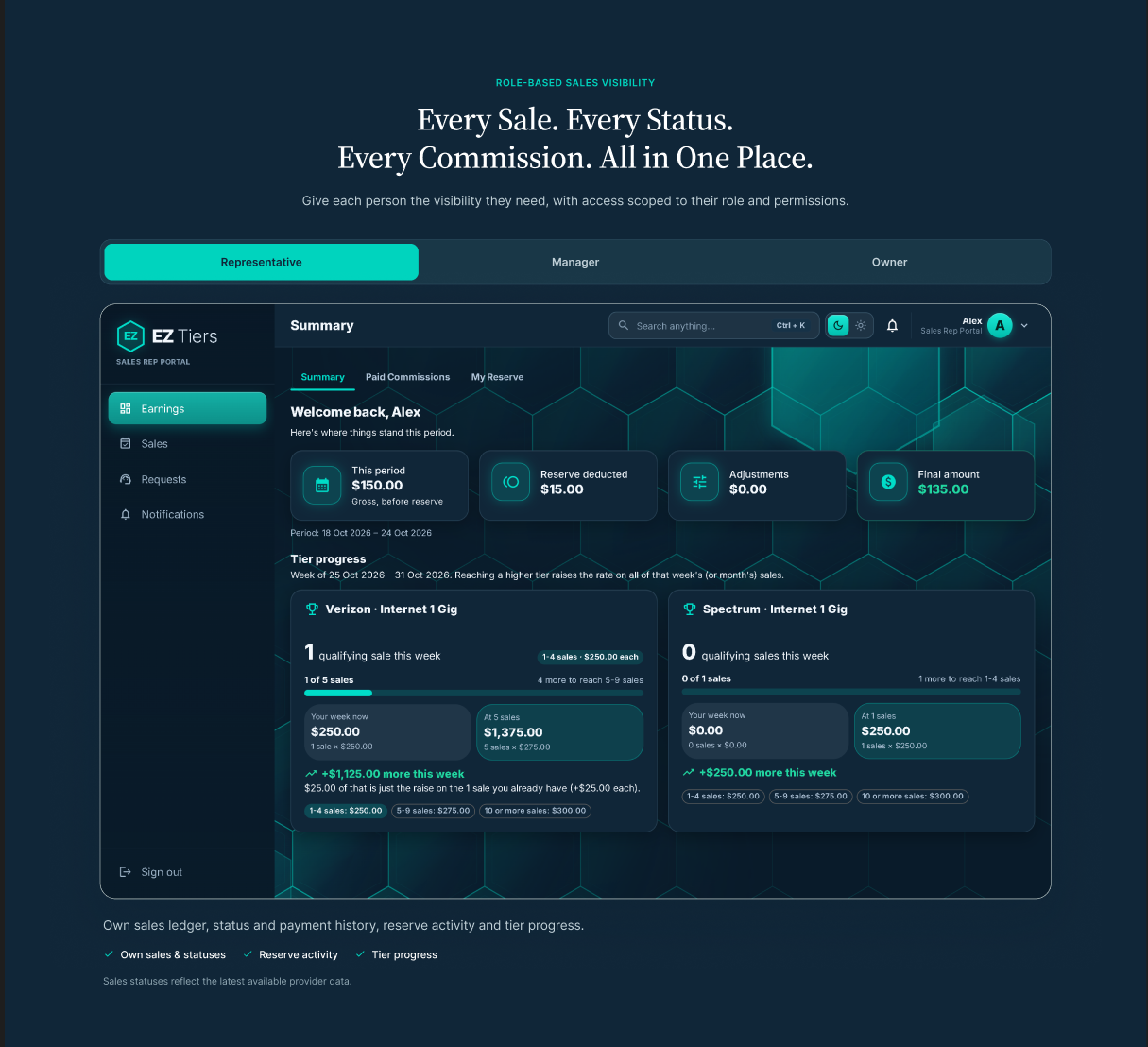
Own sales, imported statuses, payment history, reserve activity and tier progress.
How EZ Tiers Works
Import your commission data, review exceptions, apply your configured rules and deliver individual pay statements.
Step 01
Add a partner’s CSV or Excel statement and resolve unfamiliar mappings.
Step 02
Check duplicates, compare records and review unclear sales.
Step 03
Calculate the draft, review, finalize and mark it paid.
Step 04
Email individual PDF statements and export the full payroll run.
Individual PDFs Excel · CSV
Step 01 / Upload
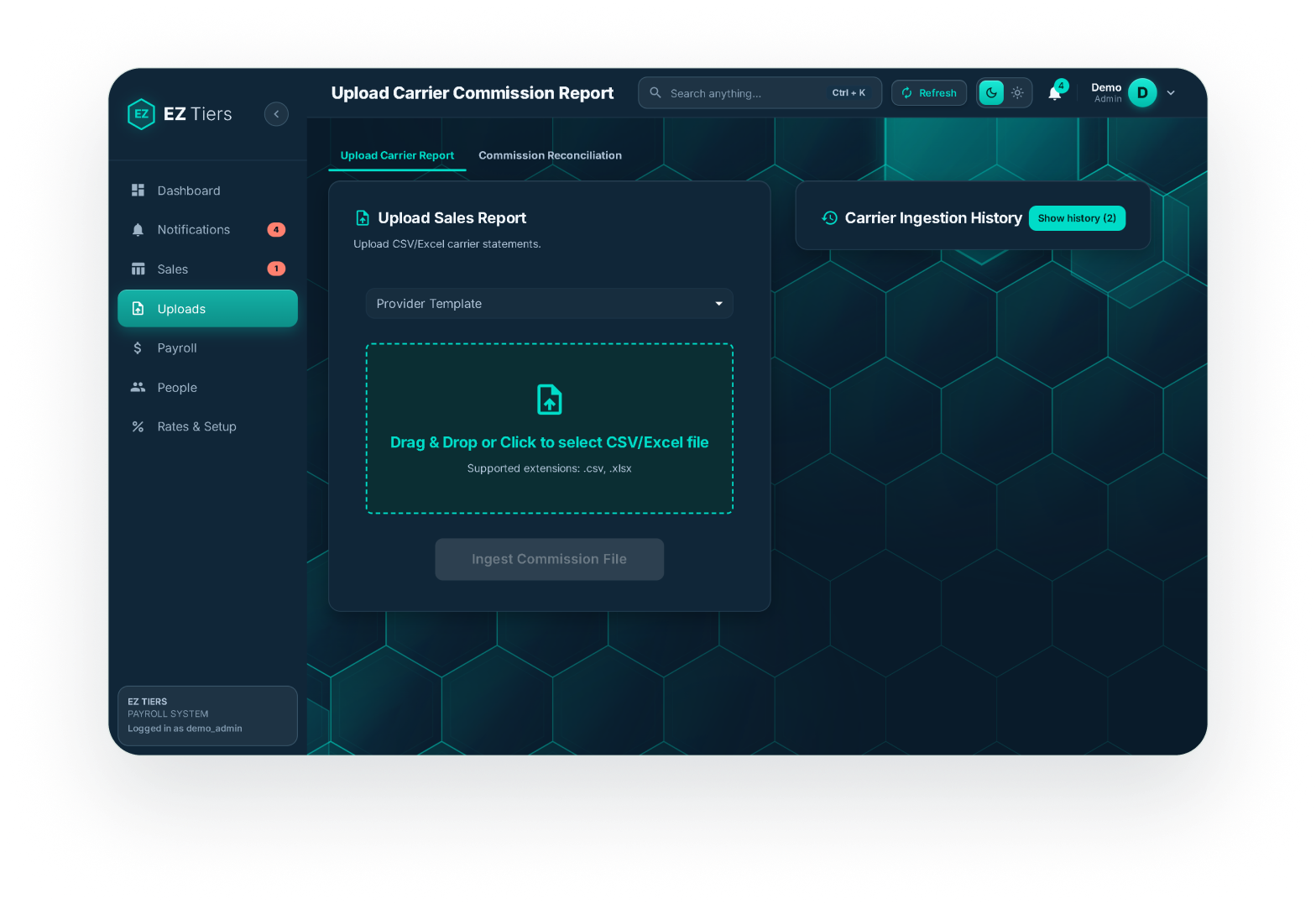
Upload a CSV or Excel commission file. EZ Tiers recognizes columns, products, rep names and statuses. When something is unfamiliar, it asks you to identify it and remembers the mapping for future imports.
Work with statements from different providers.
Reuse previously identified columns, products and rep names.
An import can be rolled back.
Step 02 / Verify
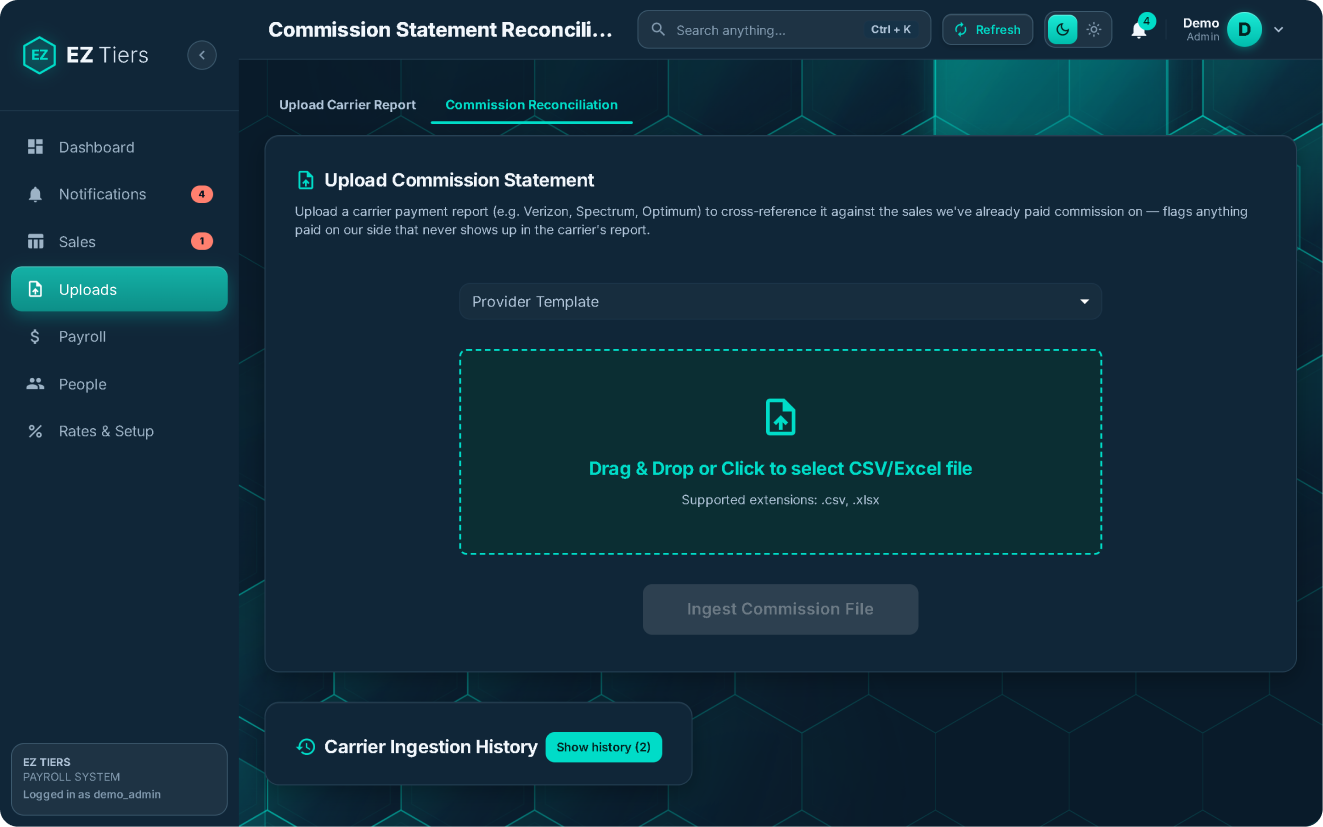
Sales are checked for duplicates and cross-checked against the partner’s official statement. Unclear records go to a review queue before they enter finalized payroll.
Identify suspected repeated records before they are paid twice.
Compare recorded sales with the official partner statement.
Investigate unclear records and mismatches.
Sales statuses reflect the latest available provider data.
Step 03 / Run Payroll
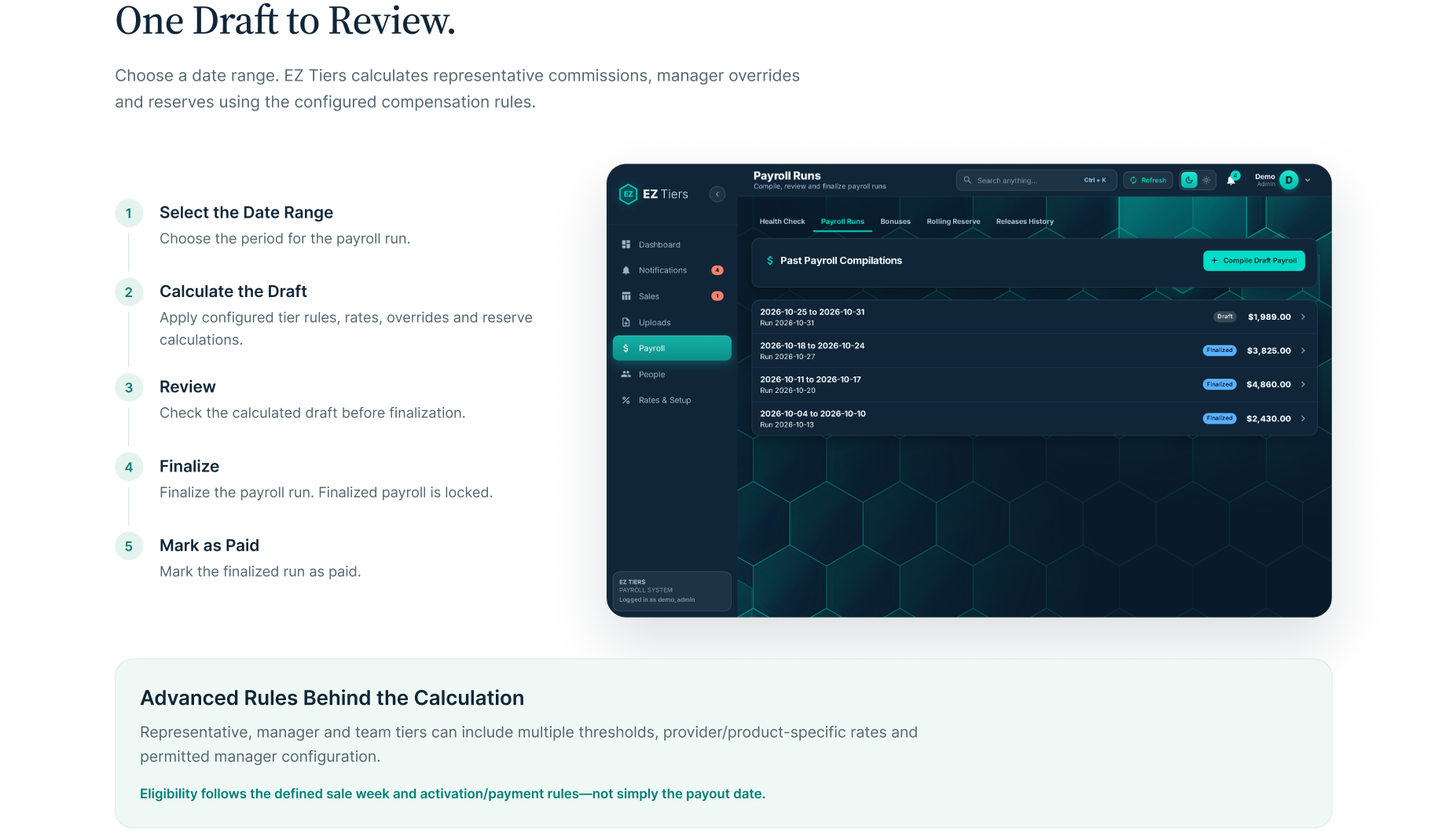
Choose a date range. EZ Tiers calculates representative commissions, manager overrides and reserves using the configured compensation rules.
Choose the period for the payroll run.
Apply configured tier rules, rates, overrides and reserve calculations.
Check the calculated draft before finalization.
Finalize the payroll run. Finalized payroll is locked.
Mark the finalized run as paid.
Step 04 / Deliver
Send each representative and manager an individual PDF pay statement by email. Admins can download the complete payroll run as Excel or CSV.
A separate statement for each rep and manager.
Download the complete payroll run.
Check sent statements and identify failed emails.
Visibility Throughout the Process
Keep sales and commission information accessible within the permissions assigned to each person.
Own sales, imported statuses, payment history, reserve activity and tier progress.
Assigned team’s sales, earnings, overrides and permitted rate/tier settings.
Company-wide reporting, payroll review, exceptions and reserve oversight.
When a Sale Needs Follow-Up
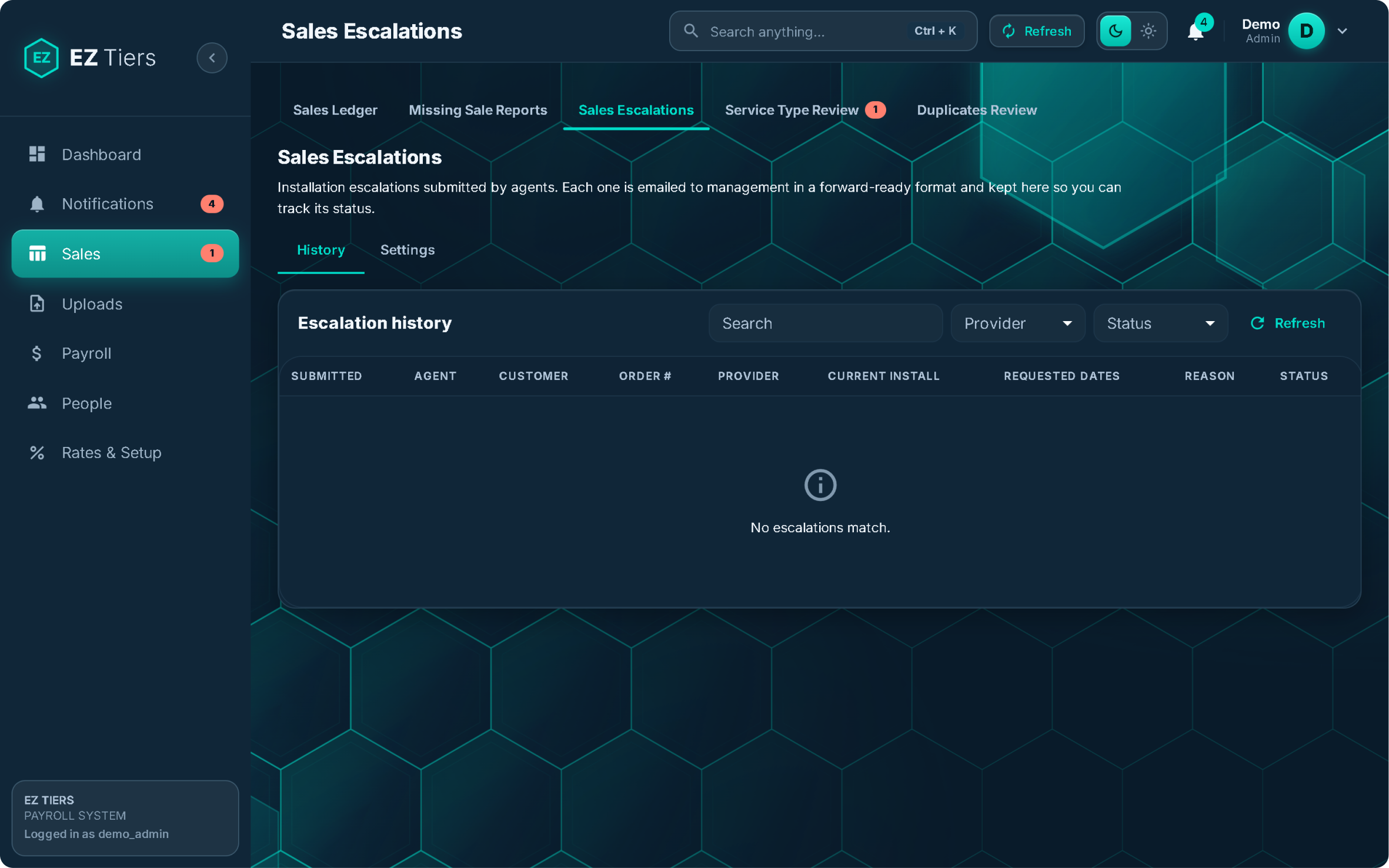
Submit sales issues, notify management and coordinate provider follow-up without relying on scattered messages.
Automated provider emails depend on the business’s configuration.
See how EZ Tiers fits your provider statements, commission rules and telecom sales operation.